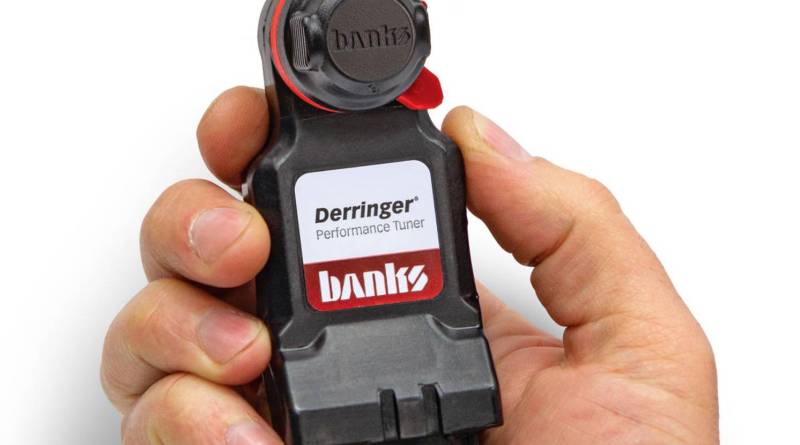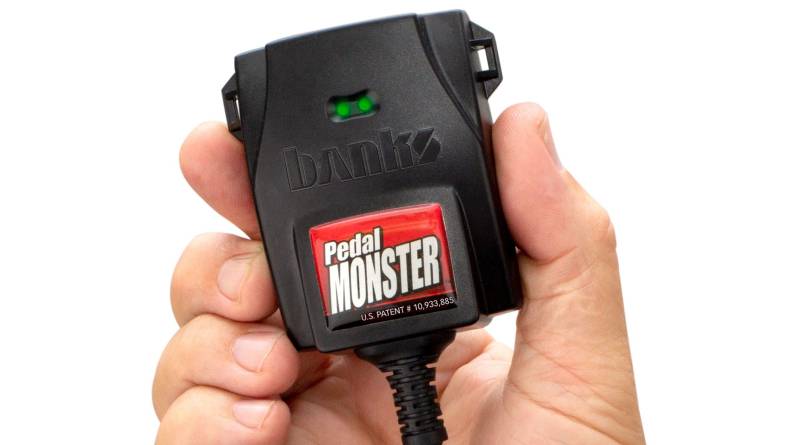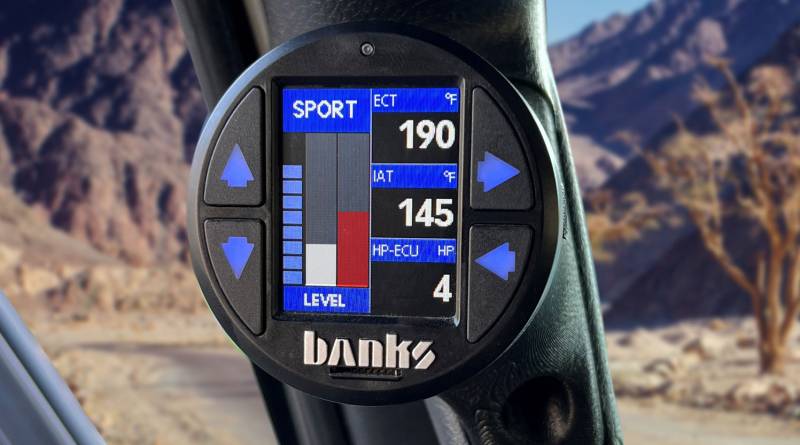
Please Click Here to Choose Your Product
Update your Banks AutoMind Programmer
INSTRUCTIONS FOR BANKS AUTOMIND PROGRAMMER- PLEASE READ FIRST
| PLEASE READ |
A. Download and Install the Banks AutoMind Update Utility
 |
The Banks AutoMind Update Utility is software that will be installed on your computer to allow communication between your PC and the Banks AutoMind Programmer. After download is complete, install the software onto your computer. Once installation is complete, reboot your computer to ensure the program is loaded properly.
Click here for Update Utility
|
B. Update your Banks AutoMind Programmer
1) Once the AutoMind Update Utility is installed on your computer, run the program either from the desktop icon or by selecting it from your programs menu.
2) During your first use, you will need to create a User Profile. During future uses, you will use the username and password that you create to log into the system.
3) After you have started the program by logging in, you may connect your AutoMind to the computer using the USB cable provided. Once the programmer is connected, updates will occur automatically. Do not disconnect the AutoMind until the program indicates that it is safe to do so.
4) When programming is complete, disconnect the AutoMind and select Log Out to exit the program. Note: If errors occur, it is recommended that you first exit the program, disconnect the AutoMind, and restart the process. |
|
Update your PowerPDA and Tuner/SpeedBrake Module
INSTRUCTIONS FOR POWER PDA - PLEASE READ FIRST
| PLEASE READ |
How to Determine if you Need a Software/Firmware Update
1) On the Banks PowerPDA - while in the main "System Monitor" screen of either the PowerPDA
PDA software (for Tuners) or SpeedBrake PDA software (for SpeedBrakes) - press the center
navigation button at the bottom of the PowerPDA.
2) Tap on the "Version Info" tab. The "Version & Vehicle Info" screen will appear.
3) If running the PowerPDA PDA software (Tuners): Make a note of the version number
shown next to "PowerPDA Version" and "Tuner Firmware Ver" If the version numbers shown are lower
than the version numbers shown on this web site, either the PowerPDA PDA software, the Tuner
module firmware, or both, will require an update.
4) If running the SpeedBrake PDA software (SpeedBrakes): Make a note of the version
number shown next to "PDA Version" and "Brake Firmware Ver". If the version numbers shown are
lower than the version numbers shown on this web site, either the SpeedBrake PDA software, the
SpeedBrake module firmware, or both, will require an update.
|
If you do not already have the Palm Desktop/HotSync Manager software installed on your
computer, start at step A. If you already have the Palm Desktop/HotSync Manager software
installed on your computer, skip to step C.
A. Installing the Palm Desktop/HotSync Manager software
1) If you have the CD that came with your Banks PowerPDA (Palm Tungsten E2) kit, insert the
CD into your PC's CD drive follow the installation instructions to install the software onto your PC.
2) If you do not have the CD that came with your Banks PowerPDA (Palm Tungsten E2)
kit, click on this link: http://www.palm.com/us/support/palmdesktop.html
and follow the online instructions to download and install the latest Palm Desktop and
HotSync Manager software to your PC.
3) Once the installation is complete, there should be two Palm application icons on your PC
desktop. NOTE: If you do not see the Palm icons on your desktop, verify that the Palm
Desktop and HotSync Manager programs are installed on your PC by looking in the 'Programs' menu under
the 'Start' tab.
|
B. Downloading the latest PowerPDA/SpeedBrake PDA software (*.prc) and Tuner/SpeedBrake
module firmware (*.pdb) from the Banks web site
** IMPORTANT: Be sure to delete any previously-installed PowerPDA or SpeedBrake PDA software from the Banks PowerPDA before proceeding!
1) To download the latest version of PDA software (*.prc) for your Banks
PowerPDA, select the appropriate "PowerPDA.prc" (for Tuners) or "BanksBrake.prc" (for SpeedBrakes)
file from the list below.
2) Click on the *.prc file link. A file locator window will open and ask you where to save
the *.prc software file.
3) Save the *.prc file to your PC desktop or any other directory you choose (NOTE: Remember
where you saved the downloaded *.prc file).
4) To download the latest version of Tuner or SpeedBrake module firmware
(*.pdb),
first locate the 5-digit part number on the label of your Banks Tuner or SpeedBrake module.
Using this 5-digit module part number, find the associated *.pdb firmware file from the list below.
Example: A module part number of '63862' (Duramax LBZ Stinger Diesel Tuner) will use the firmware
file named "DuramaxLBZStinger63862-05-2.pdb" (note the 5-digit module part number in the *.pdb filename).
5) Click on the *.pdb file link. A file locator window will open and ask you where to save
the
*.pdb firmware file.
6) Save the *.pdb file to your PC desktop or any other directory you choose (NOTE: Remember
where you saved the downloaded *.pdb file).
|
C. Transferring the *.prc software
file(s) and *.pdb firmware file(s) to your Banks PowerPDA
You can transfer the *.prc and *.pdb files to your PowerPDA by either of two
methods:
1) Option 1 - Using the USB Sync Cable that came with your PowerPDA kit.
2) Option 2 - Using an SD memory card and memory
card reader (not included).
Option 1: Transferring the files using the Palm USB Sync Cable:
1) Locate the USB Sync Cable in your Banks PowerPDA (Palm Tungsten E2) kit and plug the USB
end into any open USB port on your PC and the other end (the multi-connector end) into the port
at the bottom of your Banks PowerPDA. An audible 'chirp' will confirm connection between the
Banks PowerPDA and your PC.
2) Click on the "palmOne Quick Install" icon on your PC desktop or Start menu to open the
palmOne Quick Install application. You can also click the "Palm Desktop" icon,
whereby you will then need to click on the "Quick Install" button to open palmOne Quick Install.
3) In the palmOne Quick Install window, click the button labeled Add... to
bring up the file Open (browse) window.
4) Locate the folder where you downloaded the *.prc and *.pdb files from step B-3) above.
Once you've located the folder, click on the appropriate *.prc and *.pdb file(s) and then click
the Open button. The file(s) will be copied into the palmOne Quick Install window and be ready
for transfer to your Banks PowerPDA.
5) Press the button on the USB Sync Cable (at the multi-connector end) to start the file
synchronization process (the HotSync) between the PC and the Banks PowerPDA. The file(s)
placed in the palmOne Quick Install window will be automatically transferred to the Banks
PowerPDA and removed from the file window once the synchronizing process is complete.
6) After this HotSync process is complete, press the 'Home' key located on the silkscreen
portion of your Banks PowerPDA screen to open the main PDA menu.
7) Press the 'bp' (for Tuner PowerPDA PDA software) or 'sb' (for SpeedBrake PDA software)
icon.
8) Verify that the correct version of the PDA software was installed by going to the
"Version & Vehicle Info" screen and checking the "PowerPDA Version" (for Tuner PowerPDA PDA software)
or the "PDA Version" (for SpeedBrake PDA software). Refer to steps 1 & 2 in "How to Determine if
you Need a Software/Firmware Update" at the beginning of this procedure.
9) Note that the "Tuner Firmware Ver" (for Tuner module firmware) or "Brake Firmware Ver"
(for
SpeedBrake module firmware) will not have changed from previously. The procedure for
updating the firmware in either the Tuner module or SpeedBrake module will be covered in the following
step D ("Updating the Firmware in Banks Tuner and SpeedBrake Modules").
|
Option 2: Transferring the files using
the SD
Memory Card
(Memory card reader required; not included.)
** IMPORTANT: Be sure to delete any previously-installed PowerPDA or SpeedBrake PDA software from the Banks PowerPDA before proceeding!
1) Place the SD card in the memory card reader.
2) Plug the memory card reader with the SD memory card into an open USB port on your PC.
3) If the program does not start, click on the SD card icon in the system tray. This will
open a
new window into the root directory of the SD card.
4) Open the 'Palm' folder (if it exists). If a folder named 'Palm' does not exist in the
root
directory of the SD card, create one.
5) From inside the 'Palm' folder, open the 'Launcher' folder (if it exists). If a folder
named
'Launcher' does not exist in the 'Palm" folder, create one.
6) From inside the 'Launcher' folder, delete any previous version(s) of *.prc PDA software
files
or *.pdb module firmware files.
7) Locate the folder on your PC where you downloaded the *.prc and *.pdb files from step
B-3)
above and copy them into the SD card's 'Palm\Launcher' folder
8) Once the files have been copied over, remove the SD card from the memory card reader.
9) Insert the SD card into the Banks PowerPDA's SD card slot. The PowerPDA will make an
audible tone and the screen will show the 'bp' (PowerPDA PDA software) and/or 'sb' (SpeedBrake PDA
software) icons. Note that the *.pdb module firmware files are not shown, as they are
"hidden" database files and do not appear in the PowerPDA's file screens. These *.pdb firmware
files are internally linked to their associated *.prc software application (whether for Tuner
PowerPDA software or SpeedBrake software).
10) To copy the *.prc and *.pdb files from the SD card into the PowerPDA, click on the
silkscreen
'menu' icon located on the lower left-hand corner of the PowerPDA's screen area. The
Copy
screen should appear.
11) In the Copy From: drop-down menu (top of screen), select the SD card. The
To:
selection should be "Device".
12) Select either "Banks" (for Tuner PowerPDA PDA software) or "Banks Brake"
(for
SpeedBrake PDA software) from the file list and click Copy. A pop-up window will
appear on
the PowerPDA's screen showing Copying "Banks" (or "Banks Brake") to "Device". Once
the
files are copied and the pop-up window disappears, remove the SD card from the PowerPDA.
13) In the main PowerPDA menu, press the 'bp' (for Tuner PowerPDA PDA software) or 'sb'
(for
SpeedBrake PDA software) icon.
14) Verify that the correct version of the PDA software was installed by going to the
"Version &
Vehicle Info" screen and checking the "PowerPDA Version" (for Tuner PowerPDA PDA software)
or the
"PDA Version" (for SpeedBrake PDA software). Refer to steps 1 & 2 in "How to Determine if
you
Need a Software/Firmware Update" at the beginning of this procedure.
15) Note that the "Tuner Firmware Ver" (for Tuner module firmware) or "Brake Firmware Ver"
(for SpeedBrake module firmware) will not have changed from previously. The procedure for
updating the firmware in either the Tuner module or SpeedBrake module will be covered in the following
step D ("Updating the Firmware in Banks Tuner and SpeedBrake Modules").
|
D. Updating the Firmware in Banks Tuner
and
SpeedBrake Modules
NOTE: The Banks PowerPDA and SpeedBrake
PDA software applications automatically link to the
correct *.pdb module firmware files loaded in the PowerPDA for the particular Tuner or
SpeedBrake
module installed in the vehicle. The *.pdb firmware files are not user-selectable from
within the
PowerPDA once they have been transferred (from the previous steps), and the
PowerPDA/SpeedBrake
software prevents the incorrect *.pdb firmware file from being loaded into the module.
Updating the firmware in a Banks Tuner module
1) Make sure the appropriate Tuner *.pdb firmware file was transferred into the PowerPDA
(from the
previous step C).
2) Make sure the Docking Station is properly connected to the Banks Tuner and vehicle
OBD-II port.
3) Place the PowerPDA into the Docking Station.
4) Turn the vehicle ignition key to the 'on' position (BUT DO NOT START ENGINE) and turn on
the
PowerPDA.
5) Run the Tuner PowerPDA PDA software by touching the 'bp' icon in the main PDA system
menu.
6) Press the center navigation button at the bottom of the PowerPDA to go to the software's
'System Menu' screen.
7) Tap on the 'Update Tuner' tab to go to the 'Update' window.
8) Tap on the 'Download' tab at the bottom of the 'Update' window. The PowerPDA will
automatically select and download the appropriate firmware file into the Tuner. This may
take
20-30 seconds, as noted by the progress bar.
9) The PowerPDA screen will show when the download is complete.
10) Verify that the correct version of firmware was installed in the Tuner by going to the
"Version & Vehicle Info" screen and checking the "Tuner Firmware Ver" parameter.
11) Tap the 'Back' tab to get back to the main 'System Monitor' screen.
|
Updating the firmware in a Banks SpeedBrake module
1) Make sure the appropriate Tuner *.pdb firmware file was transferred into the PowerPDA
(from the
previous step C).
2) Make sure the Docking Station is properly connected to the Banks SpeedBrake and vehicle
OBD-II
port.
3) Place the PowerPDA into the Docking Station.
4) Turn the vehicle ignition key to the 'on' position (BUT DO NOT START ENGINE) and turn on
the
PowerPDA.
5) Run the SpeedBrake PDA software by touching the 'sb' icon in the main PDA system menu.
6) Press the center navigation button at the bottom of the PowerPDA to go to the software's
'System Menu' screen.
7) Tap on the 'Update Brake' tab to go to the 'Update' window.
8) Tap on the 'Download' tab at the bottom of the 'Update' window. The PowerPDA will
automatically select and download the appropriate firmware file into the SpeedBrake. This
may take 20-30 seconds, as noted by the progress bar.
9) The PowerPDA screen will show when the download is complete.
10) Verify that the correct version of firmware was installed in the SpeedBrake by going to
the
"Version & Vehicle Info" screen and checking the "Brake Firmware Ver" parameter.
11) Tap the 'Back' tab to get back to the main 'System Monitor' screen.
|
|
PDA Software Files
Module Firmware Files
 |
Locate & download updates
Using the 5-digit part number of
the tuner or SpeedBrake
module (see example), locate the associated
*.pdb firmware file from the list below. Example: A module
part number '63862' (Duramax LBZ Stinger Diesel tuner)
will use the firmware file named
"DuramaxLBZStinger63862-05-2.pdb".
The last number in the file name is the current firmware
If the version number that you identified earlier is lower
than the current version, an update is recommended.
Click on the *.pdb file link from the web site. A file
locator will open and ask you where to save the *.pdb firmware
file.
IMPORTANT: Save the *.pdb file onto the SD
card. |
| Locate your download below » |
CHEVY/GMC DIESEL TRUCKS »
Chevy: ’07-08 6.6L Duramax LMM
Diesel Tuner, Stinger,
GM 6.6L Duramax
LMM, P/N 63882 |
DuramaxLMMStinger63882-05-3.pdb |
| Diesel Tuner, PowerPack, GM 6.6L
Duramax LMM, P/N 63884 |
DuramaxLMMPowerpack63884-05-3.pdb |
| Diesel Tuner, Six-Gun, GM 6.6L Duramax
LMM, P/N 63886 |
DuramaxLMMSixGun63886-05-3.pdb |
| SpeedBrake, GM 6.6L Duramax LMM (large
housing), P/N 55428 |
DuramaxLMMspeedbrake55428-05-6.pdb |
| SpeedBrake, GM 6.6L Duramax LMM,
P/N 55434 |
DuramaxLMMspeedbrake55434-05-3.pdb DuramaxLMMspeedbrake55434-05-2.pdb |
Chevy: ’06-07 6.6L Duramax LBZ
| Diesel Tuner, Stinger, GM 6.6L Duramax
LBZ, P/N 63862 |
DuramaxLBZStinger63862-05-3.pdb
DuramaxLBZStinger63862-05-2.pdb |
| Diesel Tuner, PowerPack, GM 6.6L
Duramax LBZ, P/N 63864 |
DuramaxLBZPowerpack63864-05-3.pdb
DuramaxLBZPowerpack63864-05-2.pdb |
| Diesel Tuner, Six-Gun, GM 6.6L Duramax
LBZ, P/N 63866 |
DuramaxLBZSixGun63866-05-5.pdb
DuramaxLBZSixGun63866-05-4.pdb |
| SpeedBrake, GM 6.6L Duramax LBZ (large
housing), P/N 55422 |
DuramaxLBZspeedbrake55422-05-3.pdb |
| SpeedBrake, GM 6.6L Duramax LBZ,
P/N 55431 |
DuramaxLBZspeedbrake55431-05-2.pdb
DuramaxLBZspeedbrake55431-05-1.pdb |
Chevy: ’04-05 6.6L Duramax LLY
| Diesel Tuner, Stinger, GM 6.6L Duramax
LLY, P/N 63712 |
duramax63712stinger-05-1.pdb |
| Diesel Tuner, PowerPack, GM 6.6L
Duramax LLY, P/N 63714 |
duramax63714powerpack-05-1.pdb |
| Diesel Tuner, Six-Gun, GM 6.6L Duramax
LLY, P/N 63716 |
duramax63716sixgun-05-4.pdb |
| SpeedBrake, GM 6.6L Duramax LLY,
P/N 55420 |
DuramaxLLYspeedbrake55420-05-6.pdb DuramaxLLYspeedbrake55420-05-4.pdb |
Chevy: ’01-04 6.6L Duramax LB7
|
DODGE DIESEL TRUCKS »
Dodge: ’06-07 5.9L Cummins
Dodge: ’03-05 5.9L Cummins
|
FORD DIESEL TRUCKS »
Ford: ’08-09 6.4L Power Stroke
Ford: ’03-07 6.0L Power Stroke
|
DIESEL MOTORHOMES »
Cummins: ’00 5.9L CR ISB Cummins
Cummins: ’07-09 6.7L Cummins
|
|